
Get the next step on the client's calendar without leaving the board
TopLeft puts TimeZest on every ticket and project task, so the client picks a time and your team gets back to the work.
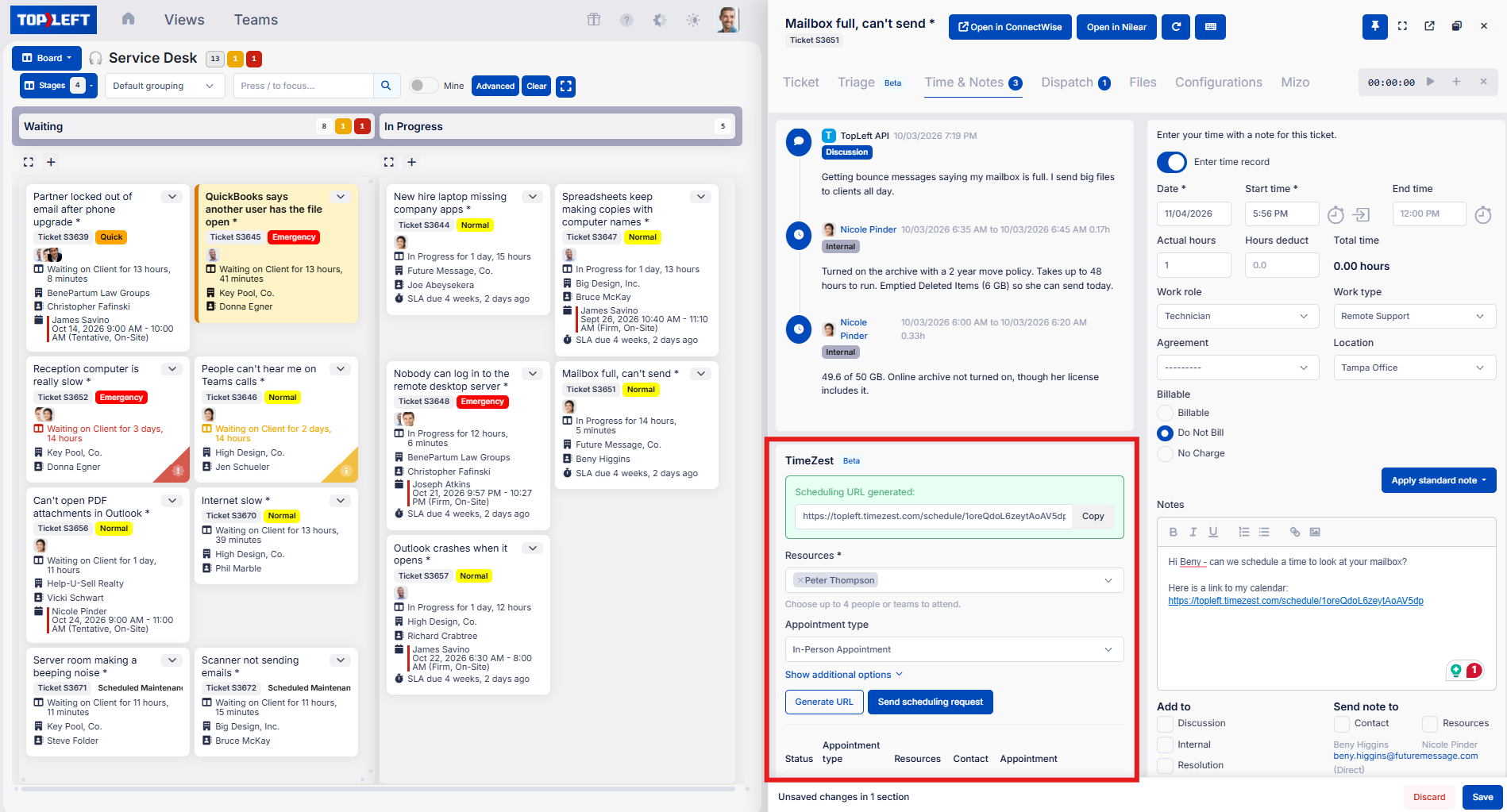
Open a card, go to Time & Notes, and send a scheduling request or copy a booking link. TimeZest does the back and forth.
Used by 700+ MSPs




Where scheduling slows work down
Booking a time is rarely the hard part of the job. Waiting for it is.
Projects wait on the client
A late project is often a finished step waiting for the next one to get a date, such as a site visit, a server downtime window or a Teams meeting with the client.
Pull work, schedule the exceptions
On a pull-based board, technicians finish one ticket and pull the next most important one, with no dispatcher assigning every ticket. Some tickets still need a time with the client. Letting the client book it keeps the board moving.
Email chains are not the service
Clients pay for outcomes and a good experience, not for three emails about Tuesday versus Thursday. Every minute spent coordinating a time is a minute nobody is fixing anything.
Everything TimeZest needs, on the card
The TimeZest panel sits next to time entry on the Time & Notes tab, laid out like TimeZest's own panel for ConnectWise, so it feels familiar.
- Send scheduling request: pick who attends and the appointment type. TimeZest emails the contact a link to choose a time, and the booking lands on your technician's calendar.
- Generate URL: get the booking link to paste into a ticket note, a Teams chat or your own email, with nothing sent by TimeZest.
- Every request on the card: status (new, sent, scheduled, cancelled or closed), who attends, the contact and the booked time, so nobody has to ask whether the client picked a slot.
TopLeft fills in the attendee for you: your own TimeZest agent when your email matches, otherwise the TimeZest team linked to your TopLeft team.
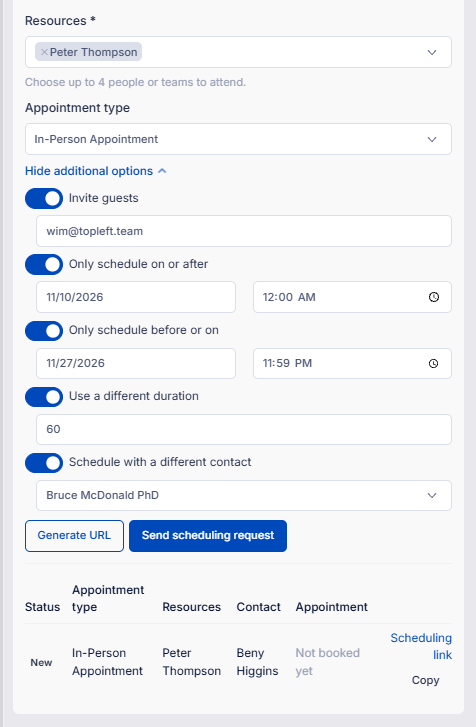
The options dispatchers ask for
Under Show additional options.
Invite guests
Add other email addresses to the appointment, such as the client's IT contact or your account manager.
Set a booking window
Only schedule on or after a date, before a date, or both. Useful when the hardware arrives next week or the cutover has a deadline.
Use a different duration
Change the length for this one appointment without a new appointment type.
Schedule with a different contact
Pick another active contact at the same client when the person who logged the ticket is not the one you need on site.
Works with ConnectWise, Autotask and HaloPSA
TopLeft supports each MSP PSA that TimeZest works with. Every request is attached to the ticket in your PSA, so TimeZest and your PSA both show it.
ConnectWise
Service tickets, project tickets and project issues.
TopLeft for ConnectWise →Autotask
Tickets. Project tasks are not supported yet, because TimeZest has no Autotask task to attach them to.
TopLeft for Autotask →HaloPSA
Tickets and projects, since Halo stores both as tickets.
TopLeft for HaloPSA →How to set it up
An administrator does this once. You need a TimeZest account. Anyone on a Manager or User seat can then schedule from their cards; Viewer seats are read-only. Full steps are in the setup guide.
Connect TimeZest
In TimeZest, create a read/write key on the API Keys page.
In TopLeft, go to Settings, Integrations, TimeZest. Paste the key, turn on Show TimeZest in the ticket editor and save.
If you would rather TimeZest never emails clients from TopLeft, also turn on Generate scheduling URLs only. The panel then offers Generate URL alone.
Link your teams
For anyone without their own TimeZest agent, open each team under Settings, Teams and choose its TimeZest team. Requests from that team's members default to it.
Send the first request
Open a card on any board, go to Time & Notes, and send a request or generate a link. It shows in the list under the form straight away.
See it on your own tickets
We learn how you dispatch and schedule today, then walk you through TopLeft and TimeZest on ConnectWise, Autotask or HaloPSA.