
Project capacity planning: Give clients realistic dates
You commit 2 weeks to start a project, and 3 to complete... but then it slips to 10 weeks. See true capacity using your existing PSA data, without having to re-enter into Excel or Microsoft Project.
“It’s a guessing game, we’re just throwing a dart at the wall and hoping it sticks.”
Works with ConnectWise, Autotask, and HaloPSA.
Used by 700+ MSPs




See when the next project fits, before you say yes
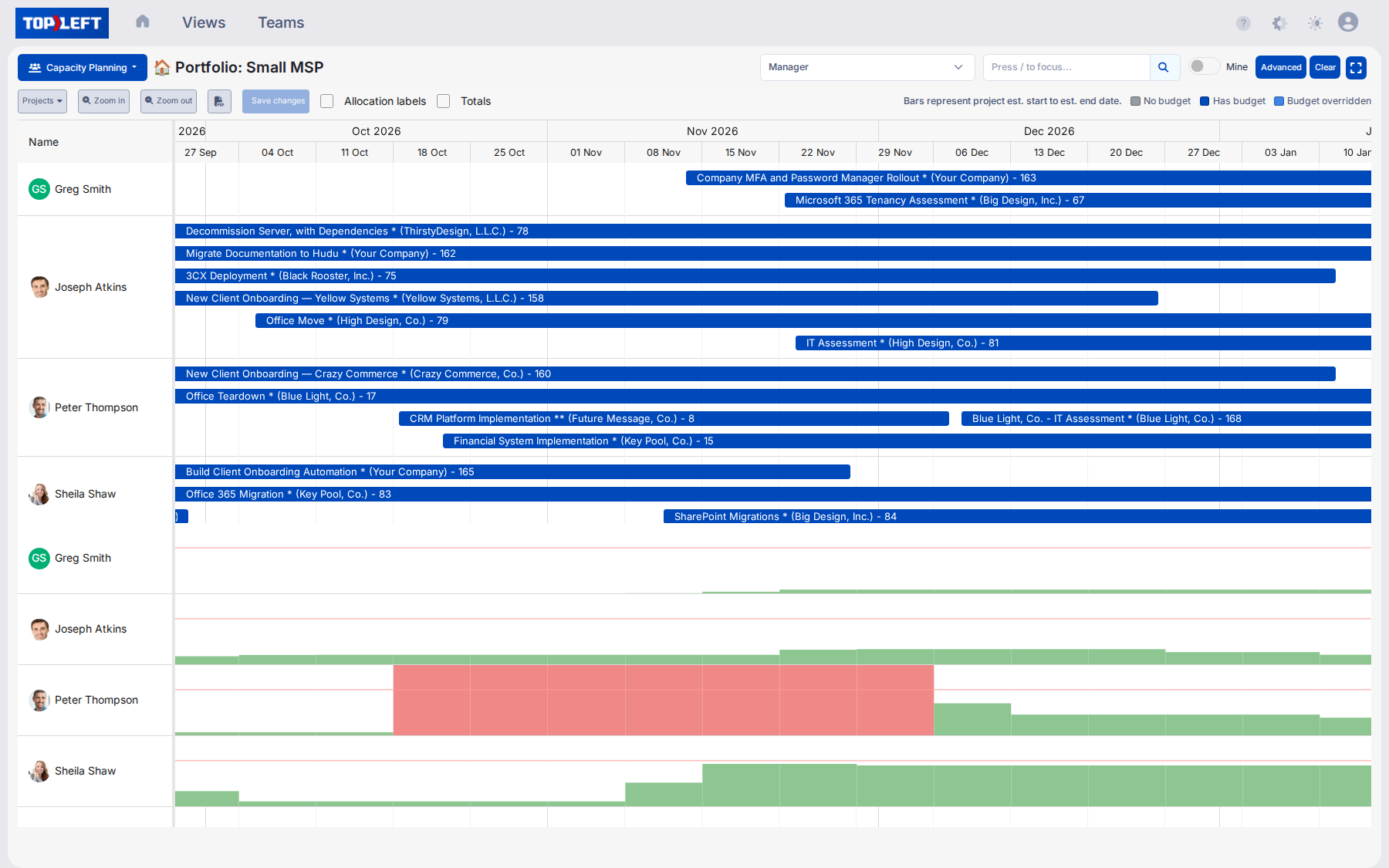
Every engineer's project load, week by week, as far ahead as your projects run. When sales asks if the next one fits, the answer is a week on the chart, not a guess.
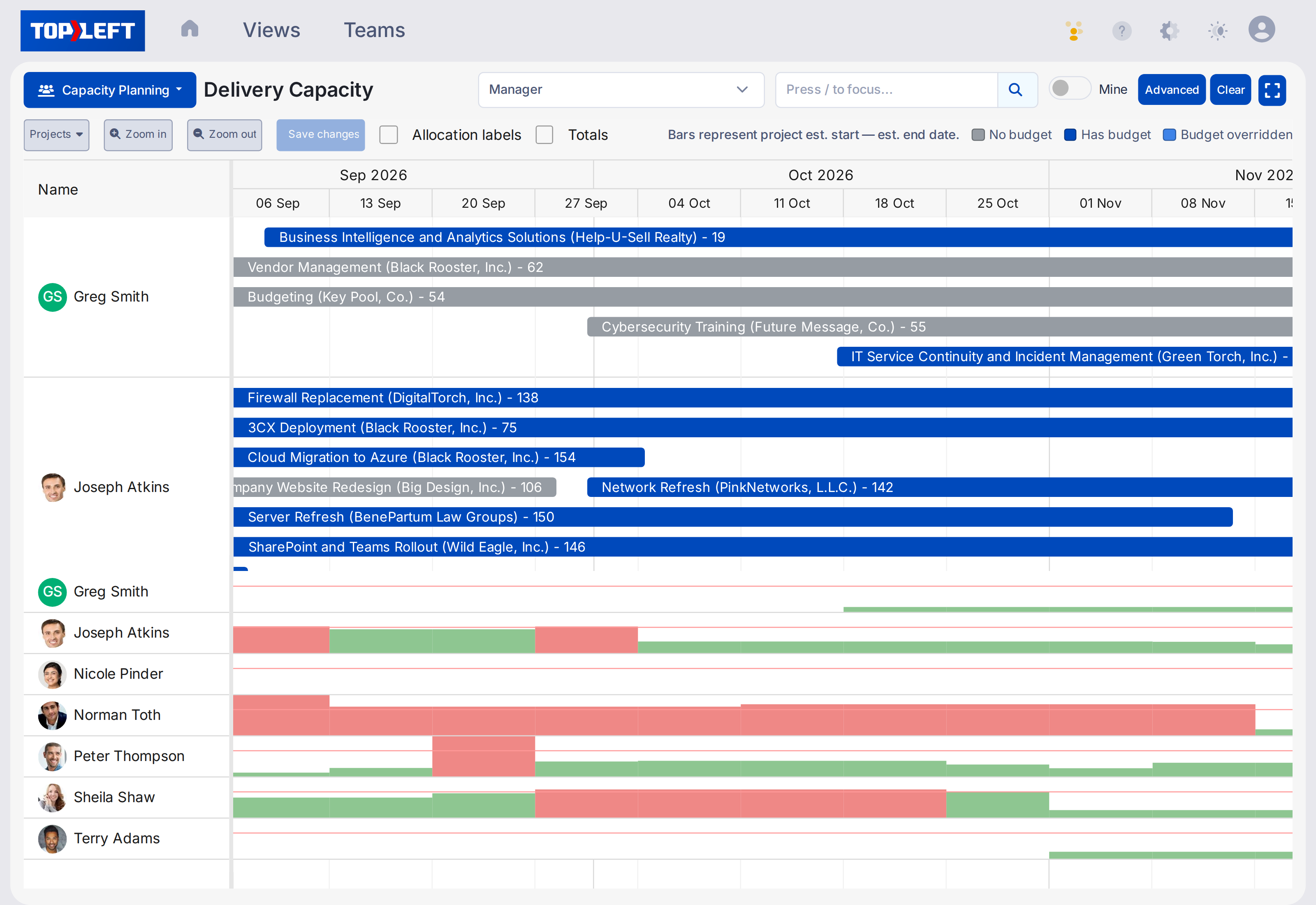
Visual Team Capacity View Compare assigned project hours against each engineer's actual available hours every week so you know who is working on what.
Overload Heatmaps Red bars show who's scheduled for more hours than they can work. Green shows who has room.
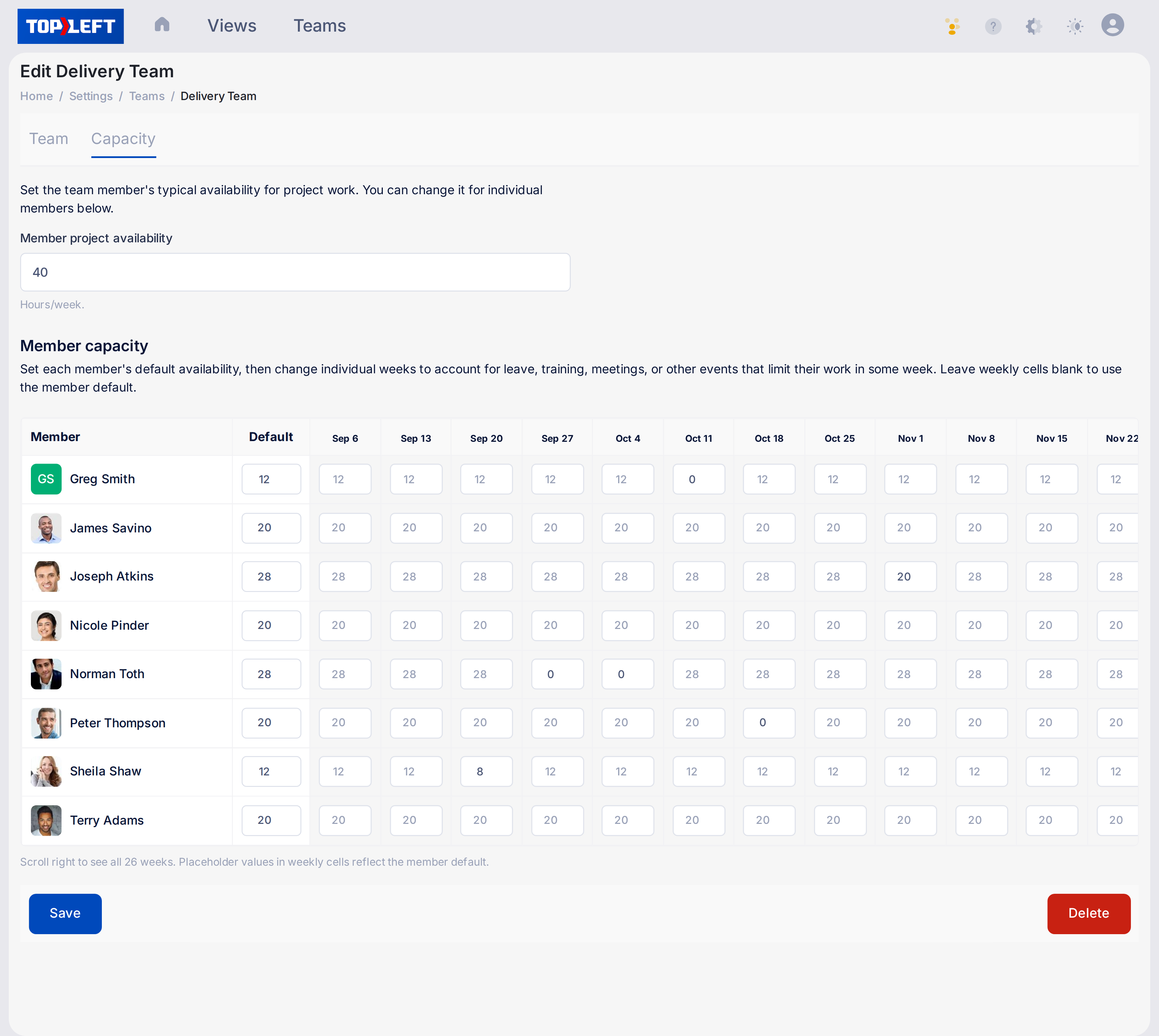
Capacity Per Person, Per Week Give each engineer the hours they can actually give to projects, and drop them for a vacation week or a training block.
“This is the best view for capacity planning that I've had so far.”
Tell clients the truth about project timelines
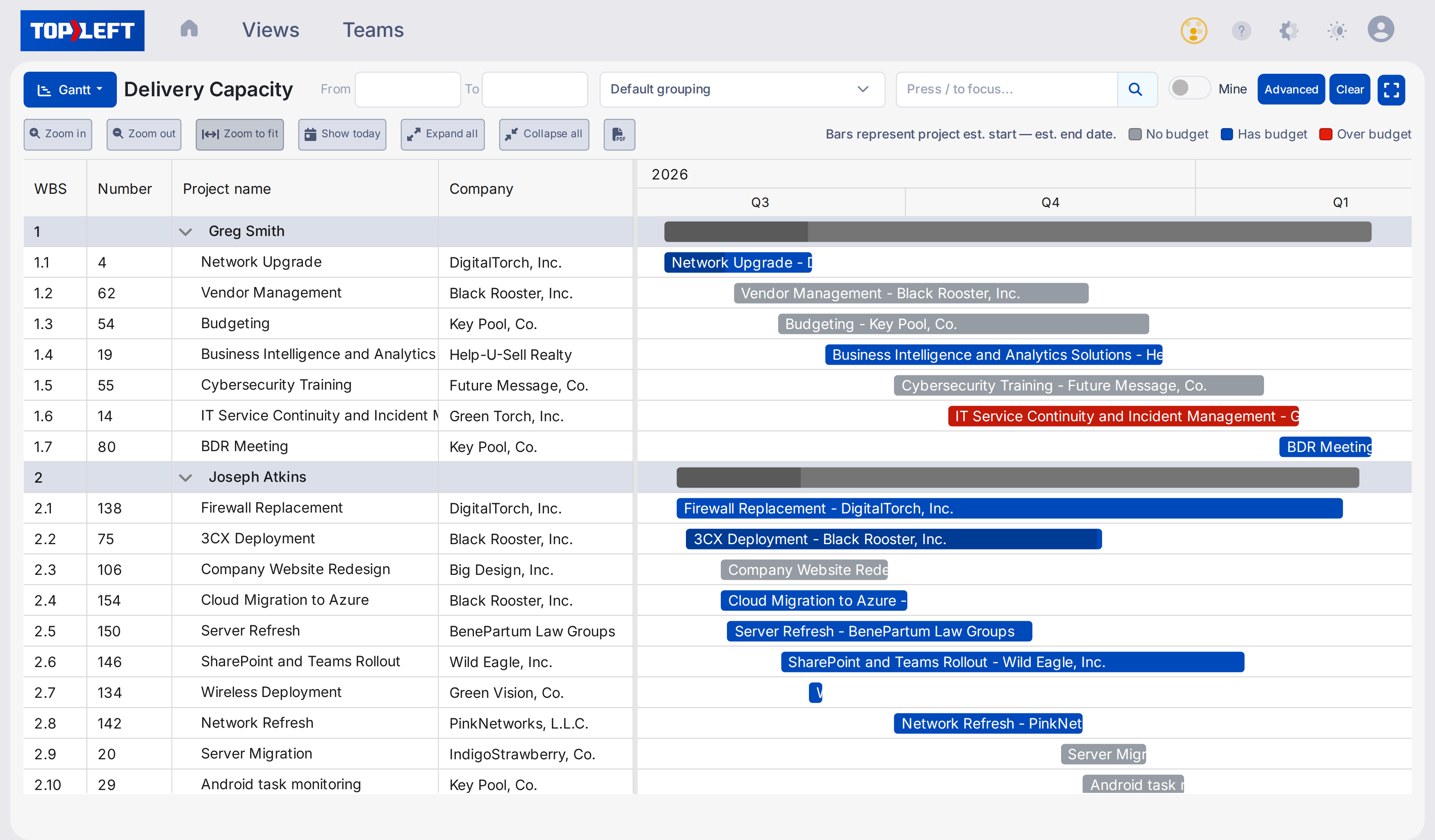
Check which engineer you'd put on the project before setting expectations.
- Slide a project to a later week and watch who frees up, before you tell the client.
- Plan work by the week, not by the hour.
- Try it in a draft. Nothing reaches your PSA until you press Save.
Setup takes 15 minutes, not a project
Give the team a default, such as 40 hours a week. Give each engineer their own number, say 20 hours for projects with the rest left for tickets. Then adjust single weeks as required for vacation, training and so on.
Our onboarding team will walk you through it during the onboarding call.
Questions MSPs ask
What about projects we might win but haven't sold yet?
Can I track custom billing amounts and project budgets?
Will this mess up my PSA data if I make a mistake?
What if projects don't burn evenly?
We have separate project teams. Can they each plan independently?
Is there a free way to start?
See it in action
Get a personal tour of how PSA-integrated Kanban boards give your team a shared view of all their work.