
Flow charts for your TopLeft boards, with Nave
Nave is a Kanban analytics tool. TopLeft sends your board's data to a Nave dashboard every day, so you can see where tickets and tasks stall and whether your team finishes work as fast as it arrives.
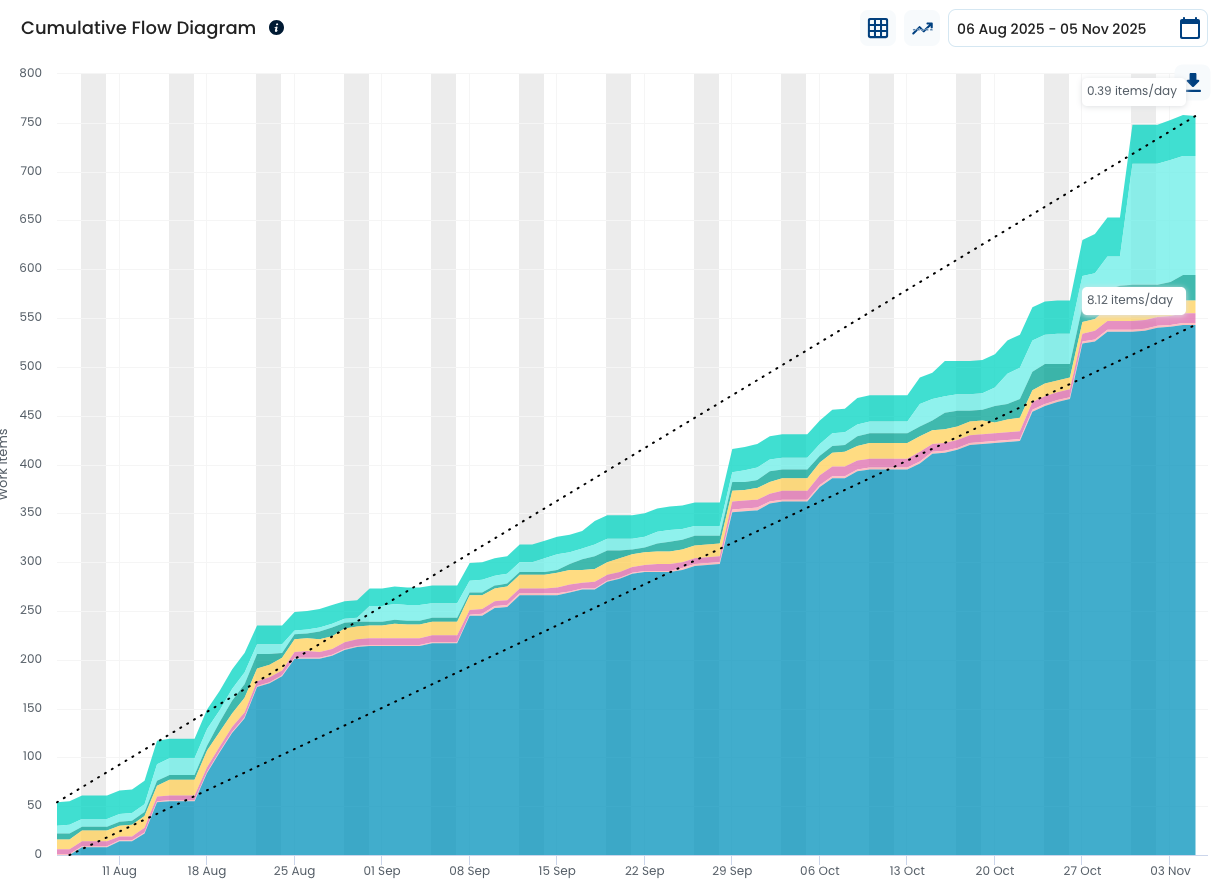
What Nave shows you
TopLeft makes the work visible on the board. Nave adds the history behind it.
Cumulative flow diagram
How many cards sat in each column, day by day, so you see which column work piles up in and when.
Cycle time scatterplot
How long each finished ticket or task took from start to done, so you can tell a client how long work like theirs usually takes.
Aging chart
How long the work still in progress has been open, so old cards get attention before they become a problem.
How to set it up
An administrator does this once per board. Full steps, with screenshots, are in the setup guide.
Connect Nave
Start a Nave account at getnave.com, copy your Nave access token, and paste it into TopLeft under Settings, Apps, Nave Kanban Charts.
Create a dashboard from a board
Pick a board that covers a team's whole workflow, download its Nave export file from that settings page, and upload it to a new Nave dashboard.
Map the board's columns to Nave's To do, Doing and Done. Swimlanes (rows that group cards, for example by client, technician or project) are ignored.
Let TopLeft send the data daily
Paste the Nave dashboard ID back into TopLeft and save. From then on TopLeft uploads the board's data every day.
If you add, remove or rename columns later, update the column mapping in Nave.
The launch webinar
The TopLeft and Nave teams walk through the integration and the charts, on ConnectWise and Autotask boards.
See TopLeft's boards on your PSA
We learn how you run tickets and projects today, then walk you through TopLeft on ConnectWise, Autotask or HaloPSA.